Bluetooth technology has become an integral part of modern computing, providing a seamless way to connect a myriad of devices wirelessly. Windows 11, Microsoft's latest operating system, offers a streamlined interface for managing Bluetooth connections. However, users sometimes encounter challenges when attempting to remove Bluetooth devices. If you're facing this issue, rest assured you're not alone. This guide will walk you through the steps to troubleshoot and resolve problems related to removing Bluetooth devices in Windows 11.
Understanding Windows 11 Bluetooth Management
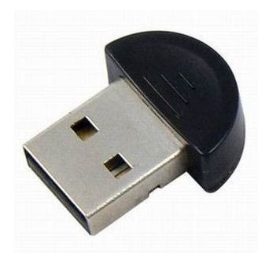
Windows 11 has made it easier than ever to manage Bluetooth settings. The Bluetooth & devices section in the Settings app allows users to pair, connect, and remove devices with a few clicks. Typically, removing a device involves selecting it from the list and clicking 'Remove'. Despite these improvements, issues can arise, preventing users from successfully removing a device.
Bluetooth technology, as discussed by CNET, continues to evolve with each iteration. However, the technology is not immune to bugs and glitches, often due to system updates, driver incompatibilities, or corrupted settings. Understanding these potential pitfalls is crucial for effective troubleshooting.
Common Issues When Removing Bluetooth Devices
Users attempting to remove a Bluetooth device may encounter several common issues, including error messages such as "Remove failed" or "Device is still in use". These problems can stem from various factors:
- System Bugs: Temporary glitches in the operating system can prevent device removal.
- Outdated Bluetooth Drivers: Drivers that are not up-to-date may cause compatibility issues.
- Active Connections: If the device is still connected or in use, Windows might block its removal.
- Corrupted Bluetooth Settings: Corruption in the Bluetooth configuration can lead to persistent issues.
By identifying these potential causes, users can apply targeted solutions to resolve the problem.
Step-by-Step Troubleshooting Guide
Restart Bluetooth Services
One of the simplest solutions is to restart the Bluetooth service. This can often resolve minor software glitches. To do this:
- Press
Win + Rto open the Run dialog. - Type
services.mscand press Enter. - Locate 'Bluetooth Support Service' in the list.
- Right-click and select 'Restart'.
Restarting the Bluetooth service can refresh the connection settings and potentially resolve the issue.
Use Device Manager
The Device Manager is a powerful tool for managing hardware devices in Windows 11. To remove a problematic Bluetooth device:
- Right-click the Start button and select 'Device Manager'.
- Expand the 'Bluetooth' section.
- Right-click on the device you want to remove and select 'Uninstall device'.
- Restart your computer to apply the changes.
This method ensures that the device is completely removed from the system.
Check for Windows Updates
Microsoft frequently releases updates to address known issues and improve system stability. Ensuring your system is up-to-date can resolve many problems:
- Go to Settings > Windows Update.
- Click 'Check for updates' and install any available updates.
Regular updates can prevent and fix bugs, including those affecting Bluetooth functionality.
Advanced Solutions for Persistent Problems
If basic troubleshooting steps do not resolve the issue, consider these advanced solutions:
Reset Bluetooth Configurations via Command Prompt
Resetting the Bluetooth configuration can help clear any corrupted settings:
- Open Command Prompt as an administrator.
- Type
net stop bthservand press Enter to stop the Bluetooth service. - Type
net start bthservand press Enter to restart the service.
This process resets the Bluetooth stack, potentially resolving deeper issues.
Address Driver Conflicts
Driver conflicts can cause persistent Bluetooth issues. To resolve this:
- Open Device Manager.
- Right-click on the Bluetooth device and select 'Update driver'.
- Choose 'Search automatically for updated driver software'.
Alternatively, visit the manufacturer's website to download and install the latest driver version.
Utilize Windows Troubleshooter
Windows 11 includes a built-in troubleshooter that can automatically detect and fix Bluetooth issues:
- Navigate to Settings > System > Troubleshoot.
- Select 'Other troubleshooters'.
- Find 'Bluetooth' and click 'Run'.
The troubleshooter will scan for issues and provide recommended solutions.
Preventive Tips for Future Bluetooth Management
To avoid future Bluetooth issues, consider these preventive measures:
Regular Updates
Keep your Windows system and Bluetooth drivers updated to ensure compatibility and performance. Regular updates can prevent many common issues.
Best Practices
Adopt best practices for Bluetooth management, such as turning off Bluetooth when not in use to save battery and prevent unauthorized connections.
Enable Automatic Troubleshooting Alerts
Windows 11 can notify you of potential issues before they become problematic. Enable troubleshooting alerts in the settings to stay informed.
FAQ: Common Questions about Windows 11 Bluetooth Issues
Why can't I find my Bluetooth device?
Ensure the device is in pairing mode and within range. Additionally, verify that Bluetooth is enabled on both the device and your computer.
How do I know if my device is compatible with Windows 11?
Most modern Bluetooth devices are compatible with Windows 11. Check the device specifications or the manufacturer's website for compatibility details.
What should I do if none of the steps work?
If troubleshooting steps fail, consider contacting the device manufacturer for support. Online forums and community discussions can also provide helpful insights.
Conclusion
Troubleshooting Bluetooth issues in Windows 11 can be straightforward with the right approach. By understanding the potential causes and following the steps outlined in this guide, users can effectively resolve issues related to removing Bluetooth devices. Regular maintenance and updates will further enhance Bluetooth performance, ensuring a smooth and seamless experience.
Sources
- [CNET · editorial] Best Bluetooth Speakers of 2026 — CNET
For more insights on Windows 11 features and troubleshooting, explore additional resources and articles available on Everyday Techie.