If the screen goes black, flickers, or freezes while the PC is still running, Windows 11 has a reset path that does not require a full reboot. Microsoft’s own blank-screen guide says to press Windows + Ctrl + Shift + B to reset the graphics driver — you should hear a beep or see a flicker if it worked. That is the first move. If the picture still fails, Device Manager and the GPU maker’s installer are the next layers, not a random third-party “driver booster.”
This page compiles Microsoft Support, Windows driver docs, and the NVIDIA and AMD download desks. Everyday Techie did not run a lab test of your card. The job is to match the symptom to the right reset so you do not uninstall a working driver on a laptop that still needs its OEM package.
Quick solution
- Hold Windows + Ctrl + Shift + B at the same time. Wait for a beep or a one-second black flash.
- If the desktop is still wrong, press Windows + P, tap P again, then Enter to cycle display modes (PC screen only, duplicate, extend).
- If Task Manager itself flickers with the rest of the screen, the display adapter is the suspect. Open Device Manager → Display adapters → right-click the GPU → Update driver, or Properties → Driver → Roll Back Driver if the mess started after an update.
- If Windows cannot find a better package, download the matching installer from NVIDIA GeForce Drivers or AMD Drivers and Support — or from the laptop maker if this is a thin-and-light with Intel or AMD graphics soldered to the board.
- If you need a stop-code or freeze record after the picture comes back, use How to see crash logs in Windows 11.
What “reset the graphics driver” actually means
People use one phrase for three different jobs:
| Job | What Windows does | What you should expect | When it is the right lever |
|---|---|---|---|
| Keyboard reset | Recreates the desktop drawing surface (WDDM / Desktop Window Manager path) | Beep, brief black frame, apps stay open | Flicker, freeze, or blank screen while the machine is still humming |
| Device Manager restart | Disables then enables the display adapter, or rolls it back | Screen blanks longer; you may need a reboot | Shortcut did nothing, or a specific driver package just landed |
| OEM reinstall | NVIDIA, AMD, Intel, or the PC maker replaces the driver files | Several minutes; often a reboot | Shortcut and Device Manager still fail, or games/apps demand a known package |
Microsoft’s flickering article is explicit: Windows logo key + Ctrl + Shift + B “reset[s] your graphics driver,” and if that fails, try a restart, then Device Manager update, rollback, or uninstall. Microsoft’s blank-screen article uses the same four-key chord under “Wake the screen.” Neither page asks you to download a random cleaner from a search ad.
The display stack itself is the Windows Display Driver Model (WDDM). Microsoft’s driver docs (updated 5 November 2025) describe WDDM as the current path for graphics and display drivers. You do not need that architecture chapter to finish this job. You do need to know that a “reset” is usually a software restart of that stack, not a hardware power cycle of the GPU.
More in Windows
Situation 1: the screen froze or went black, but the PC is still on
This is the case Microsoft wrote the shortcut for. Fans still spin. You may still hear audio. The picture is gone or stuck.
Do this in order:
Confirm it is a display problem, not a crash. A true bugcheck shows a stop code or restarts on its own. Microsoft sends those readers to the unexpected-restart guides. If the machine is quietly sitting there with a black panel, stay on this page.
Try the four-key reset. Press Windows, Ctrl, Shift, and B together and hold them a moment. Microsoft says you should hear a beep or see a flicker if it worked. Give it five to ten seconds. Do not mash the keys in a panic — one clean chord is enough.
Cycle the display mode. Microsoft’s next blank-screen step is Windows + P, then P again, then Enter. That matters when Windows is drawing to a TV or a second monitor that is off, or when a laptop lid closed and the OS still thinks the external panel is the only output.
Ctrl + Alt + Delete. If the security screen appears, you still have a graphics path. Microsoft suggests Task Manager from there and restarting Windows Explorer when you can see a cursor on a blank desktop.
Force restart only after those. Holding the power button for about 20 seconds is Microsoft’s last basic step. It is the right move when the panel never wakes. It is the wrong first move if you have unsaved work and the shortcut might still bring the desktop back.
If the picture returns, stop. You reset the drawing path. You did not need a new driver file. Keep the PC on a few minutes and see if the glitch repeats. A one-off flash after sleep is different from a loop that comes back every game launch.
Situation 2: the screen flickers, and you can still click around
Microsoft’s flickering guide splits the world with one test: open Task Manager with Ctrl + Alt + Delete, or Ctrl + Shift + Esc if that overlay never shows.
- If Task Manager flickers with everything else, treat it as a display driver problem. Stay in Device Manager.
- If Task Manager is steady while the desktop flickers, Microsoft says an app is the more likely cause. Update or uninstall that app from Settings → Apps → Installed apps, then reboot once.
That split saves people from ripping out a GPU package because a overlay, browser, or “optimizer” is fighting the compositor.
When Task Manager flickers too, Microsoft’s driver fixes are, in order:
- Roll back if Windows Update just changed the adapter. Device Manager → Display adapters → the GPU → Properties → Driver → Roll Back Driver. You need a previous package on disk. If the button is grey, Windows has nothing to roll to.
- Update driver on the same adapter. “Search automatically” uses what Windows already knows. It is not a substitute for the NVIDIA or AMD site when the PC maker ships a customized INF.
- Uninstall the device, with “Attempt to remove the driver for this device” checked if you are in Safe Mode, then reboot so Windows tries a clean load.
Administrator rights are required for rollback and uninstall. That is a Microsoft note, not a forum rumor.
How to use Device Manager without making it worse
Search device manager on the taskbar and open it. Expand Display adapters. Laptops often show two entries: an Intel or AMD chip in the CPU package, plus an NVIDIA or AMD discrete card. Reset or update the adapter that matches the symptom. A black external HDMI port on a docking station is often the discrete GPU. A laptop lid panel that flickers in battery saver is often the inside adapter.
Disable device / Enable device is the manual cousin of the four-key shortcut. Right-click the adapter → Disable device, wait a few seconds, then Enable device. The screen will blank. If you disable the only adapter that is actually driving the panel, you can strand yourself. On a desktop with one GPU, have the four-key shortcut in mind before you disable. On a laptop, disable the discrete card first if the built-in screen still works through the other adapter.
Update driver is documented on Microsoft’s Device Manager driver page. The honest limit: Windows Update is the default channel Microsoft wants for “recommended” drivers. Optional driver updates live under Settings → Windows Update → Advanced options → Optional updates. If the GPU vendor posted a game-ready or studio package yesterday, Windows Update may still be a week behind. That gap is why NVIDIA and AMD still run their own download desks.
Do not hunt “unknown device” driver packs from ads. Microsoft’s Device Manager article points you at Windows Update first, then a manual INF from the hardware maker. A bundled installer that also installs a browser toolbar is not a graphics reset.
If Windows 11 hid a Control Panel leftover or a Settings page you used last year, start from Windows 11 Settings rather than old devmgmt.msc muscle memory — Device Manager itself is still the same MMC snap-in.
When to use the NVIDIA or AMD installer instead
Microsoft’s flickering article says you may need the PC or display-adapter manufacturer for the newest package. That is the fork:
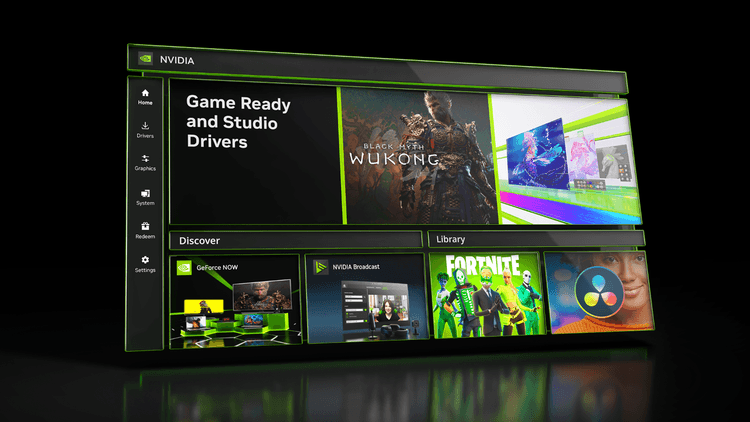
- Desktop with a retail GeForce or Radeon card: use the GPU brand’s selector. NVIDIA’s GeForce Drivers page is the official Game Ready / Studio split. AMD’s Drivers and Support page is the official Radeon / Ryzen graphics desk.
- Laptop, mini PC, or OEM desktop (Dell, HP, Lenovo, ASUS): prefer the PC maker’s support page for that exact model. Laptop INF files often include power, mux, and thermal hooks that the “generic” board-partner package does not. Installing a raw GeForce Game Ready build on a muxed laptop can work for some people and brick Advanced Optimus for others. The manufacturer page is the conservative path.
- Intel Arc or Intel graphics inside the CPU: Intel’s driver assistant is the matching desk. The same Device Manager steps apply; only the download origin changes.
NVIDIA’s driver page is a product selector, not a troubleshooting essay. You still identify the product series (for example GeForce RTX 40 Series) and the OS (Windows 11 64-bit). AMD’s support download page asks for a product family the same way. Neither site is a substitute for Microsoft’s symptom tests. They are how you replace files after those tests say the package is wrong.
A clean NVIDIA or AMD install is slower than the four-key reset on purpose. It unpacks a large package, may run an extra “clean install” checkbox, and almost always wants a reboot. Use it when:
- Device Manager rollback is grey and the problem started after a Windows Update driver.
- A game or creator app’s own notes name a minimum driver version.
- You already uninstalled the adapter in Safe Mode and Windows put the same broken package back.
What the four-key shortcut will not fix
The chord will not:
- Repair a GPU that failed hardware. Heat, a cracked solder joint, or a dying PSU rail still look like “driver” issues until the card fails in another OS or on another machine.
- Replace a missing boot device. Microsoft’s blank-screen article calls out a blinking cursor at firmware as UEFI not finding a disk. That is not WDDM.
- Unstick Remote Desktop the way it unsticks a local console. Several admin guides note the shortcut is a local graphics-stack tool. If you are in an RDP session, use Device Manager or a reboot from the host tools instead.
- Heal a corrupted user profile that logs into a blank shell. Microsoft lists that as a separate blank-screen class.
If the machine bugchecks, capture the dump before you chase GPU installers. Crash logs in Windows 11 is the matching Everyday Techie page for Event Viewer and dump files.
If the PC feels slow while the picture is fine, that is a different Windows 11 question — SysMain is memory prefetch, not the display adapter.
Safe Mode, rollback, and the “I cannot see Device Manager” case
When the panel is unusable even after the shortcut, Microsoft’s advanced blank-screen path is:
- Hold the power button about 10 seconds to force off.
- Repeat two or three times until Windows Recovery appears.
- Troubleshoot → Advanced options → Startup Settings → Restart.
- F5 for Safe Mode with Networking.
In Safe Mode the driver is the generic Microsoft Basic Display Adapter path. That is ugly and slow, and it is enough to open Device Manager. Update, roll back, or uninstall from there. If uninstall needs the “remove the driver” checkbox and you cannot see it, Microsoft says to confirm you actually booted Safe Mode.
System Restore is Microsoft’s later step when the break is recent and you have restore points. It is broader than a GPU reset. Use it when a whole quality update coincided with the black screen, not when one game overlay flickered.
A simple decision matrix
| You see… | First lever | Second lever | Stop and look elsewhere |
|---|---|---|---|
| One black flash after sleep, then normal | Four-key reset if it happens again | Leave it unless it repeats hourly | Hardware if it happens on every lid-open |
| Frozen game, audio still playing | Four-key reset | Wait; then Device Manager disable/enable | GPU thermals / crash dump if it repeats in the same title |
| Whole desktop flickers, Task Manager too | Device Manager rollback or update | OEM installer | App overlay if Task Manager is steady |
| Blank screen, cursor only | Restart Explorer (Microsoft’s step) | Four-key reset, then Safe Mode | User profile / shell, not the GPU package |
| Blank after a Windows Update | Roll back the display adapter | Optional updates / OEM package | Feature-update rollback only if Restore points exist |
| Laptop + HDMI TV, no picture | Windows + P cycle | Cable / TV input, then shortcut | Discrete vs inside GPU in Device Manager |
The original value on this page is that matrix. Search results often sell the shortcut as a magic GPU reboot. Microsoft documented it as a graphics-driver reset for blank and flickering screens, then sent you to Device Manager. The table is the compile: shortcut for a live compositor glitch, Device Manager for a package that Windows just changed, OEM site for a version Windows Update will not offer yet.
Mistakes that waste the job
Running a “driver updater” from a banner. Microsoft’s path is Windows Update, Device Manager, then the hardware maker. Extra utilities add their own services and still call the same INF in the end.
Uninstalling both adapters on a laptop in one click. You can lose the panel until Safe Mode. Disable or update one adapter at a time.
Ignoring optional driver updates, then blaming NVIDIA. Windows 11 parks some GPU packages under Optional updates. Check that list before you assume Windows “never updates drivers.”
Treating BitLocker or encryption prompts as a graphics failure. A firmware update can ask for a recovery key on the next boot. That is a disk-protection problem, not WDDM. See BitLocker vs Device Encryption if the black screen is actually a key prompt you cannot read.
Skipping the Task Manager flicker test. That one Microsoft check is how you avoid replacing a GPU driver because a chat overlay is tearing.
What to do this weekend if you want a calmer stack
If the shortcut saved you once, write the four keys on a sticky note. The next black screen will not wait for a search.
If Device Manager has been nagging after every Patch Tuesday, open Windows Update → Advanced options → Optional updates and install only the display adapter that matches the GPU you actually use. Then reboot once, not three times in a row.
If you are on a desktop GeForce or Radeon card and a game’s patch notes name a driver version, use the official NVIDIA or AMD desk, not a mirror. Keep the downloaded installer until the next known-good version, so rollback has a file to use when Windows’ own Roll Back button is grey.
If nothing here brings a picture back, you have left software reset. Test another cable, another port, or another monitor — Microsoft lists those hardware checks first on the blank-screen page for a reason.
FAQ
Is Windows + Ctrl + Shift + B safe?
Microsoft documents it as the wake/reset step for blank and flickering screens. It is meant to restart the graphics driver path without closing your apps. You should still save work when you can see the desktop. It will not fix a disk that firmware cannot find.
Why do I hear a beep?
Microsoft says a beep or a flicker is how you know the reset ran. No beep and no flash means the chord did not take — try once more, then Device Manager or a reboot.
Should I disable the display adapter every time?
No. Disable/enable is a heavier hammer than the shortcut. Use it when the four keys failed and you can still reach Device Manager.
Do I need NVIDIA App or AMD Software to reset the driver?
No. Those apps can install packages and change image settings. The Microsoft-documented reset is the four-key shortcut and Device Manager. Use the vendor app when you already chose their installer as the source of truth.
What if I have Intel graphics and NVIDIA in one laptop?
Device Manager will list both. Start with the adapter tied to the panel or port that failed. A blank HDMI TV is often the discrete GPU. A flickering built-in panel is often the inside Intel or AMD chip.
Bottom line
Resetting graphics drivers in Windows 11 is a ladder. Microsoft’s first rung is Windows + Ctrl + Shift + B. The second is display-mode cycling and Explorer. The third is Device Manager rollback, update, or uninstall. The fourth is the GPU or PC maker’s own package. Climb only as far as the symptom requires. A compositor glitch does not need a 700 MB installer. A bad INF from last night’s optional update does not need a new graphics card.
This page compiles manufacturer specifications and published Microsoft documentation. The publication did not use your GPU unless a stored evidence pack says otherwise.
Sources
- Troubleshooting blank screens in Windows — Microsoft Support (Windows 11 / Windows 10). Documents Windows + Ctrl + Shift + B to reset the graphics driver, plus display-mode cycling and Device Manager in Safe Mode.
- Troubleshoot screen flickering in Windows — Microsoft Support. Documents the same shortcut, the Task Manager flicker split, and rollback / update / uninstall in Device Manager.
- Update drivers through Device Manager in Windows — Microsoft Support. Windows Update as the default channel; Device Manager for automatic or manual driver update.
- Developer documentation for display, graphics, and compute accelerator drivers — Microsoft Learn, dated 5 November 2025. WDDM as the current Windows graphics driver model.
- Download the latest official GeForce drivers — NVIDIA. Official Game Ready / Studio selector for retail GeForce cards.
- AMD Drivers and Support — AMD. Official Radeon / Ryzen graphics download desk.